When adding an image to a news article in GLFR Business, the image should use a 4:3 aspect ratio. In practice, this means the image should be wider than it is tall – for example, 1200 × 900 px, 1600 × 1200 px, or any other size that follows the 4:3 ratio. This ensures that the image is displayed consistently and professionally, whether it is viewed in the GLFR app, on Facebook, or on the club’s website.
To make this as easy as possible, images can be cropped in two different ways:
Free Crop Mode
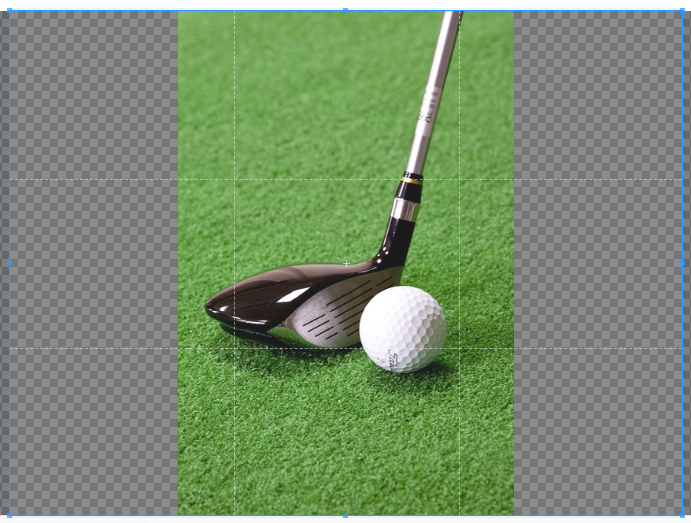
When using Free Crop Mode, the image is automatically kept in a 4:3 aspect ratio, while allowing you to freely move and adjust the crop area. This makes it possible to include as much of the subject as possible, even when the original image does not perfectly match the required format.
Recommended for: Images where you want to preserve the entire subject and have full control over what is included in the final crop.
Strict Crop Mode
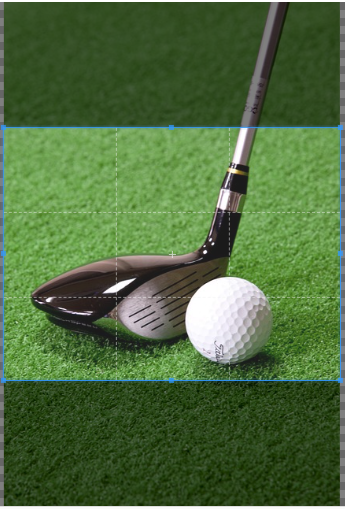
When using Strict Crop Mode, the image is automatically cropped to a 4:3 aspect ratio without the ability to adjust the proportions. The crop focuses on the selected area, and any parts of the image outside the crop frame will not be included in the final result.
Recommended for: Images where the subject is already positioned correctly and you want a quick, consistent crop with minimal adjustments.



Leave A Comment?