
With our latest update (version 6.0.2 and newer), we have completely rebuilt the connection between your iPhone and Apple Watch. This overhaul ensures a more stable experience and introduces a much smoother way to start your round.
What’s New?
- Automatic Launch: You no longer need to open GLFR on your watch before starting a game. Once you press [Start Round] on your iPhone, the app will automatically open on your watch.
- Connection Status: You can now inspect the current status of your watch connection directly within the app settings on your iPhone.
- Wrist-Based GLFR: Easily see distances, record strokes and use Shot Tracking without ever taking your phone out of your pocket.
Important: If you experienced issues with version 5.x
If you had connection problems with previous versions of GLFR, a simple update may not be enough. The old watch installation can sometimes “stick” and prevent the new system from working correctly.
To ensure the new connection works perfectly, you must perform a clean reinstall:
- Delete App, not just Remove from Home Screen. This should also remove it from your Apple Watch.
Make sure it’s fully deleted before continuing. - Reinstall GLFR from the App Store – this should install it on your watch as well.
- Log in to your account (all your data and rounds are safe on our servers).
How to Start a Round
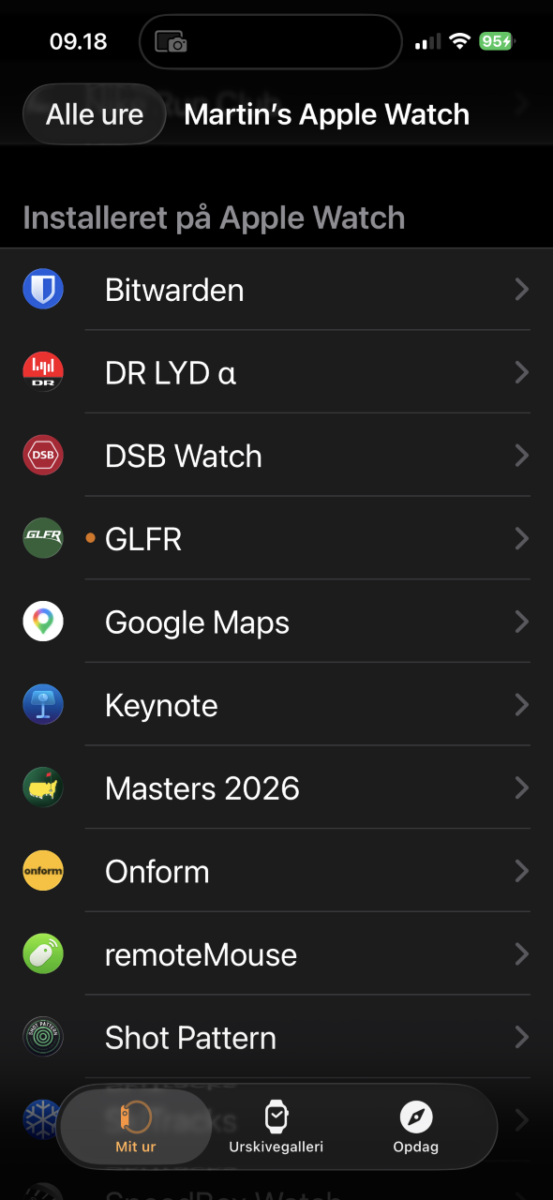
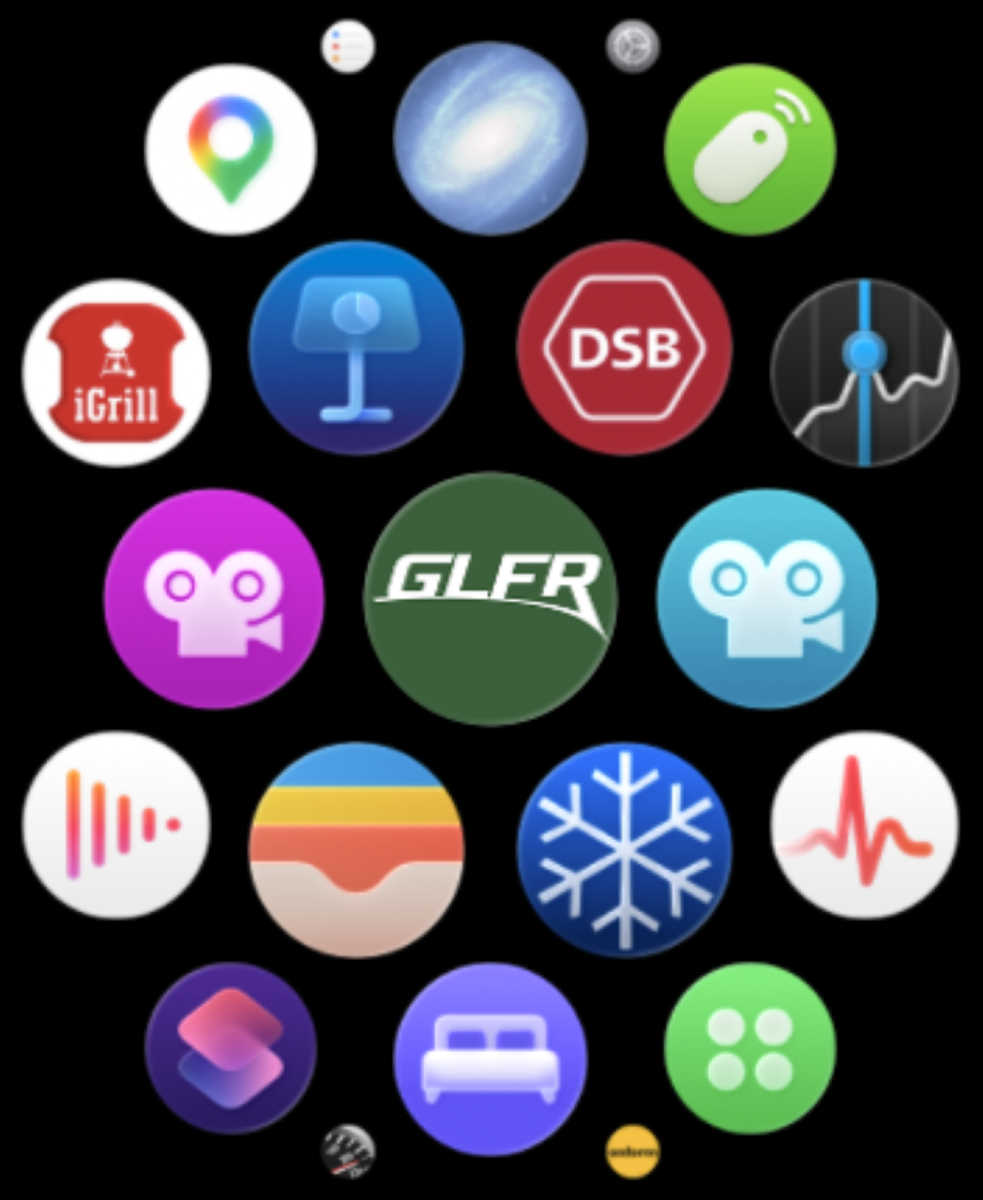
1. Ensure GLFR is installed in the Watch app on your iPhone.
You should see it as Installed in the phone app and the GLFR icon should be somewhere in the apps on your watch. It should look something like this:
2. Setup the Round on your iPhone
Once the app is installed on the Apple Watch you don’t need to do anything else on the watch before the round starts. Find the Club and Course you want to play on your phone and set up your game (select Tee, players, etc.) as ususal.
3. Start the Round and enjoy!
When the game starts on the phone (on the green “setup/loading” screen) GLFR will now automatically launch on your Apple Watch, displaying the Hole Par, Handicap, your distances and scoring. You can now put the phone in your pocket and enjoy GLFR on your Apple Watch while playing!
Troubleshooting
Hopefully, you won’t run into any issues with the connection and the watch experience, but if you have an issue, you can check the status of the connection in the Settings of the GLFR app.
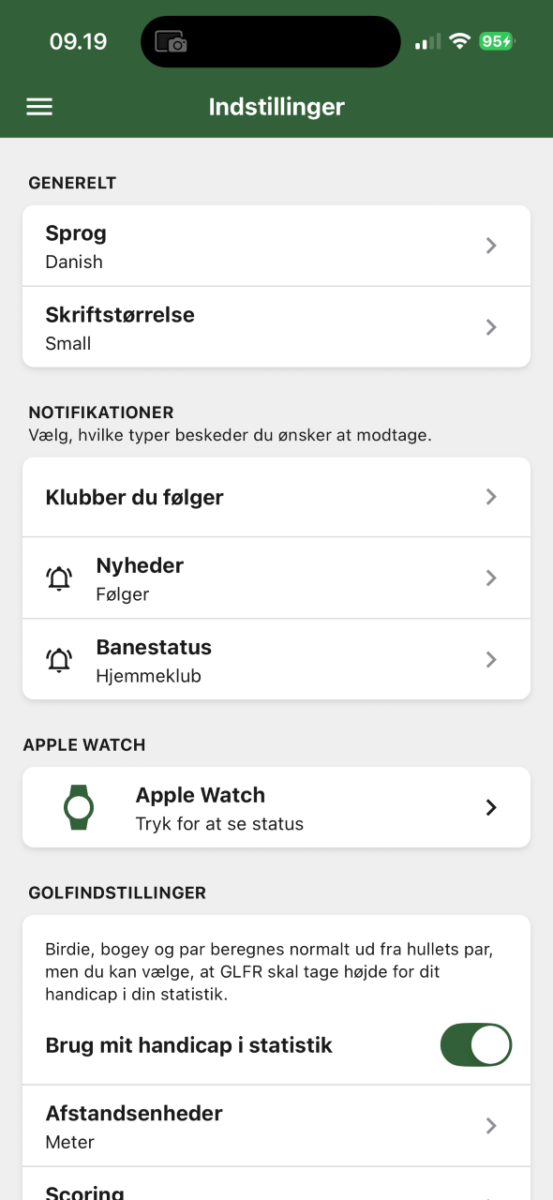
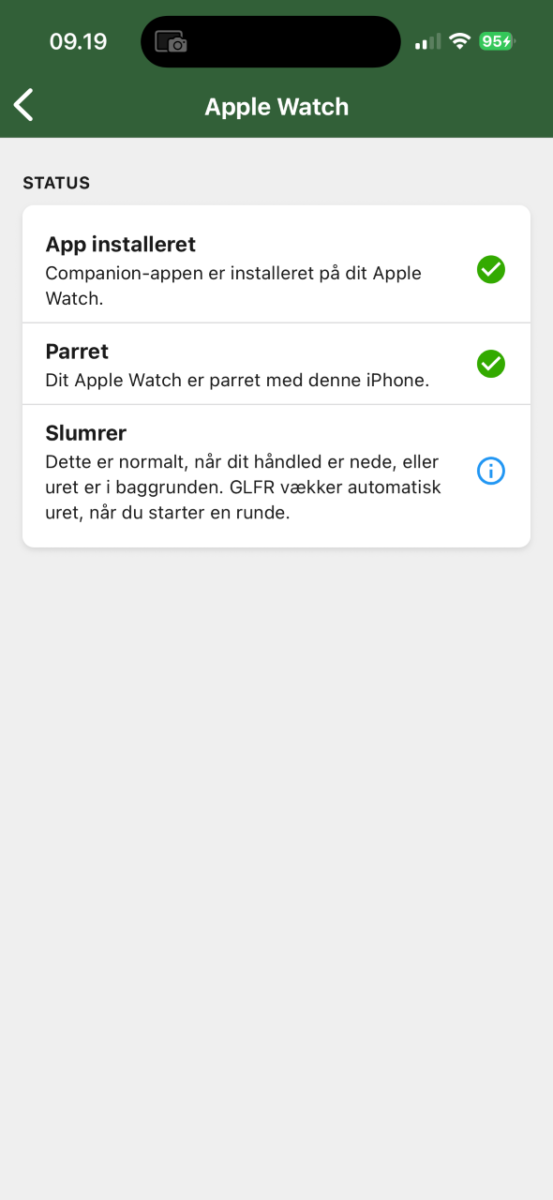
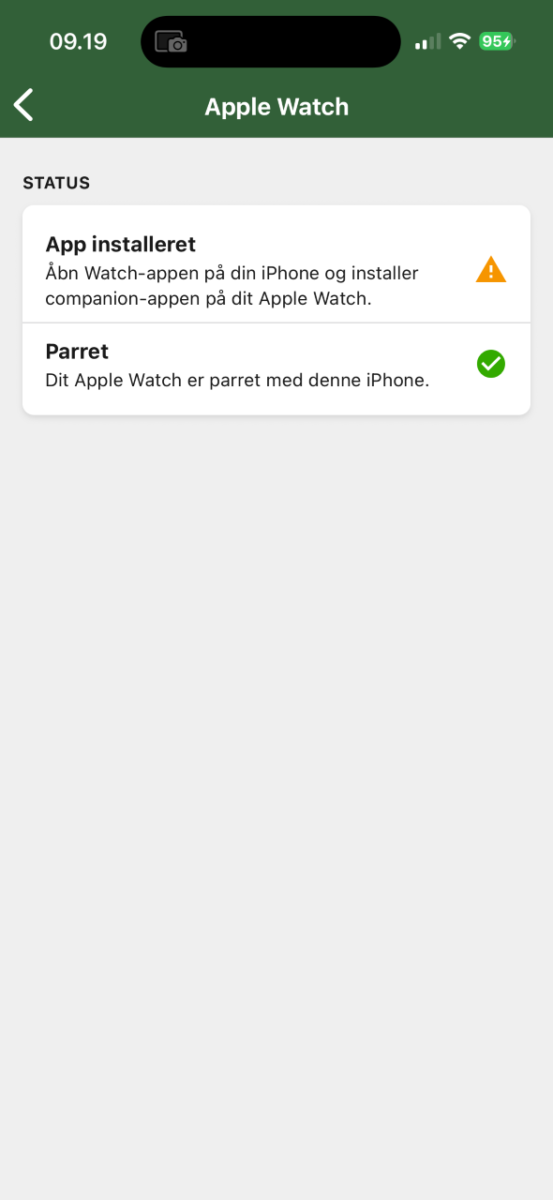
If you don’t see two green checkmarks, but instead a ⚠️ please check that the latest version of GLFR is installed on both your phone and Apple Watch. Use the Watch app on you phone to check the installation status. If all else fails, a re-install of GLFR on both phone and watch should reset the connection and you should get the two ✅✅.


Leave A Comment?