
GLFR can automatically import news from your website using an RSS feed. Selected news items can also be sent out as push notifications to all members using the GLFR or Gimmie apps.
1. How to import news to GLFR and Gimmie
GLFR supports importing news from any valid RSS feed.
How it works
- You add an RSS feed URL in GLFR Business → News.
- Our servers fetch the feed every 10 minutes.
- New items are automatically added to the club’s News section in the app.
⚠️ Important on first save
When you save a feed URL for the first time, all items currently available in the feed will be imported – including older website posts, if they are still present in the feed.
Steps
- Open GLFR Business.
- Go to News.
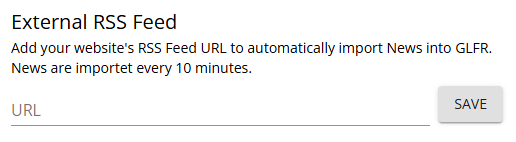
- Paste your website’s RSS feed URL in the “External RSS Feed” field.
- Save.
2. Sending push notifications from the feed
GLFR can automatically send a push notification when a news item in the RSS feed is marked correctly.
Technical requirement
To trigger a push notification:
- The RSS <item> must include a <category> tag.
- The category value must be exactly:
glfr-push-notification
(Note that WordPress automatically wraps this in CDATA[], which is fine)
If this category is present, the news item will:
- Be imported as a normal News post
- Automatically trigger a push notification to all club members with GLFR or Gimmie installed
Example RSS item
<item>
<title>This website news post will be pushed to the GLFR app</title>
<link>https://support.glfr.com/testing-push-notifications</link>
<pubDate>Mon, 15 Dec 2025 13:37:00 +0000</pubDate>
<category>glfr-push-notification</category>
<guidisPermaLink="false">https://support.glfr.com/testing-push-notifications</guid>
<description>
A push notification is sent to the GLFR and Gimmie apps of all members of a club, if the post has the correct category.
</description>
</item>
Good to know
- Only items with this category trigger push notifications.
- Items without the category are imported as normal news (no push).
- Push Notifications are sent automatically – no manual approval step.
- Push Notifications follow the normal import timing, which updated every 10 minutes!
3. Example: WordPress websites
Most WordPress websites already provide a working RSS feed by default.
Default WordPress RSS feed
- URL: https://yourwebsite.com/feed.
- This feed usually works out of the box with GLFR.
Adding the Push Notification category
To enable push notifications from WordPress posts:
- Log in to WordPress Admin.
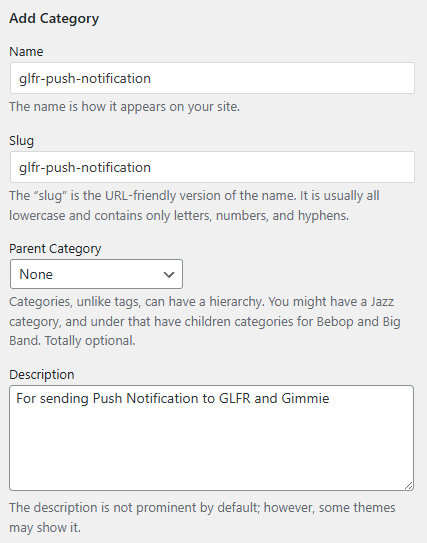
- Go to Posts → Categories.
- Create a new category with the name: glfr-push-notification.
- Save the category
Sending a Push Notification
For each post you want to send as a push notification:
- Edit or create a post in WordPress.
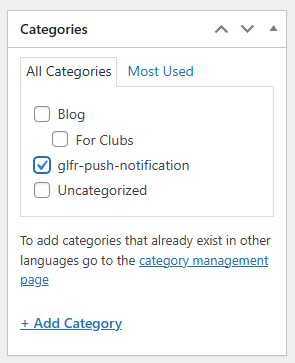
- Assign the category glfr-push-notification.
- Publish the post.
Once published:
- The post appears in the RSS feed.
- GLFR detects the category (every 10 minutes).
- A Push Notification is sent automatically.

Leave A Comment?