This article covers everything you need to know about using AI in GLFR Business. The AI feature can generate text, check your grammar, or rewrite your text in a different tone. It also works with images. GLFR Business AI can generate images that match the context of your course status or news posts. To use this feature, you need a paid subscription to an AI service.
How to setup your GLFR Business AI
Find your API KEY
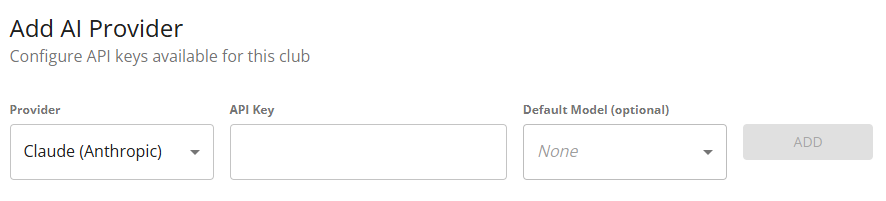
In the left side menu, you will find [AI Setup]. The first step is to add the API key from your paid AI subscription to GLFR Business. Where to find your API key varies from service to service. The easiest way is to ask your AI: “Where do I find my API key?”
Once you have your API key, you can add it to GLFR Business. First, select your AI provider (ChatGPT, Claude or Gemini). Next, enter your API key. Finally, select the model you want to use. Each AI provider offers different models for different purposes. We recommend using the default model.
Club Prompts - Give the AI context about your club
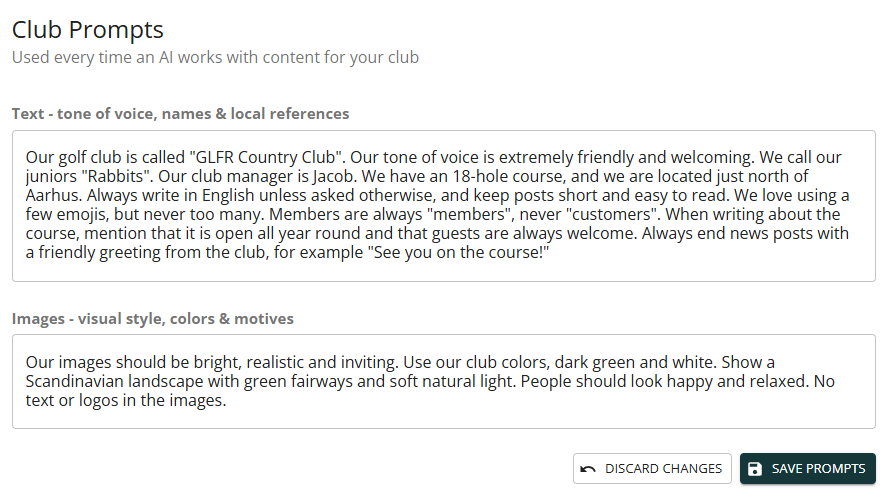
Under Club Prompts, you can tell the AI about your club, so everything it creates fits your club from the start. The prompts are used every time the AI works with content for your club, so you only need to write them once.
The prompts are divided into two fields.
In Text – tone of voice, names & local references, you describe how your club communicates. This could be your club’s name, your tone of voice, what you call your juniors, the name of your club manager, or where your course is located.
In Images – visual style, colors & motives, you describe how your images should look, such as your club colors, the landscape and the general mood.
The more specific you are, the better the results. Write your prompts as short, clear sentences, just as you would explain your club to a new colleague. When you are done, click [Save Prompts]. If you want to undo your changes, click [Discard Changes].
How to use AI in GLFR Business.
Generate, rewrite or check the grammar of your course status and news-posts.
Generating AI images and generating, rewriting or checking the grammar of your texts works the same way for both course statuses and news posts. Use the [USE AI ASSISTANT] button to work with text, and the [GENERATE WITH AI] button to create images.
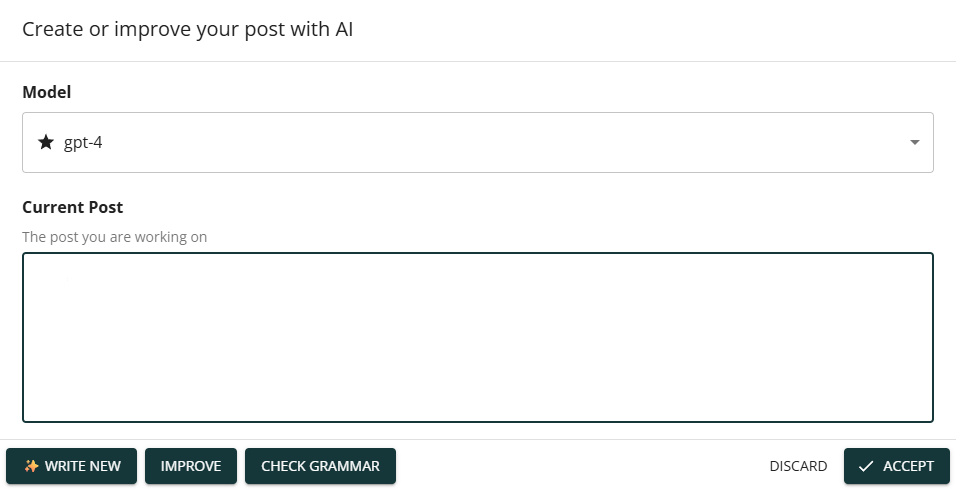
[USE AI ASSISTANT] opens a box with three options:
[Write New] writes a complete course status or news post based on a short description from you.
[Improve] improves your text based on the Club Prompts from your setup.
[Check Grammar] goes through your text and corrects any grammar mistakes.
When you are happy with the result, simply click [Accept], and the text will be inserted into your course status or news post.
Generate AI images for your course status and news posts


Leave A Comment?